Modify Prompts
Edit and transform existing images - Complete Techniques Guide
1. Add & Remove Elements
Provide an image and describe your changes. The model will match the style, lighting, and perspective of the original image. Perfect for simple object addition or removal.
Prompt Template
Code Example
from google import genai
from google.genai import types
from PIL import Image

client = genai.Client()

# Base image prompt: "A photorealistic picture of a fluffy ginger cat sitting on a wooden floor, looking directly at the camera. Soft, natural light from a window."
image_input = Image.open('/path/to/your/cat_photo.png')
text_input = """Using the provided image of my cat, please add a small, knitted wizard hat on its head. Make it look like it's sitting comfortably and not falling off."""

# Generate an image from a text prompt
response = client.models.generate_content(
    model="gemini-2.5-flash-image",
    contents=[text_input, image_input],
)

for part in response.parts:
    if part.text is not None:
        print(part.text)
    elif part.inline_data is not None:
        image = part.as_image()
        image.save("cat_with_hat.png")
Input
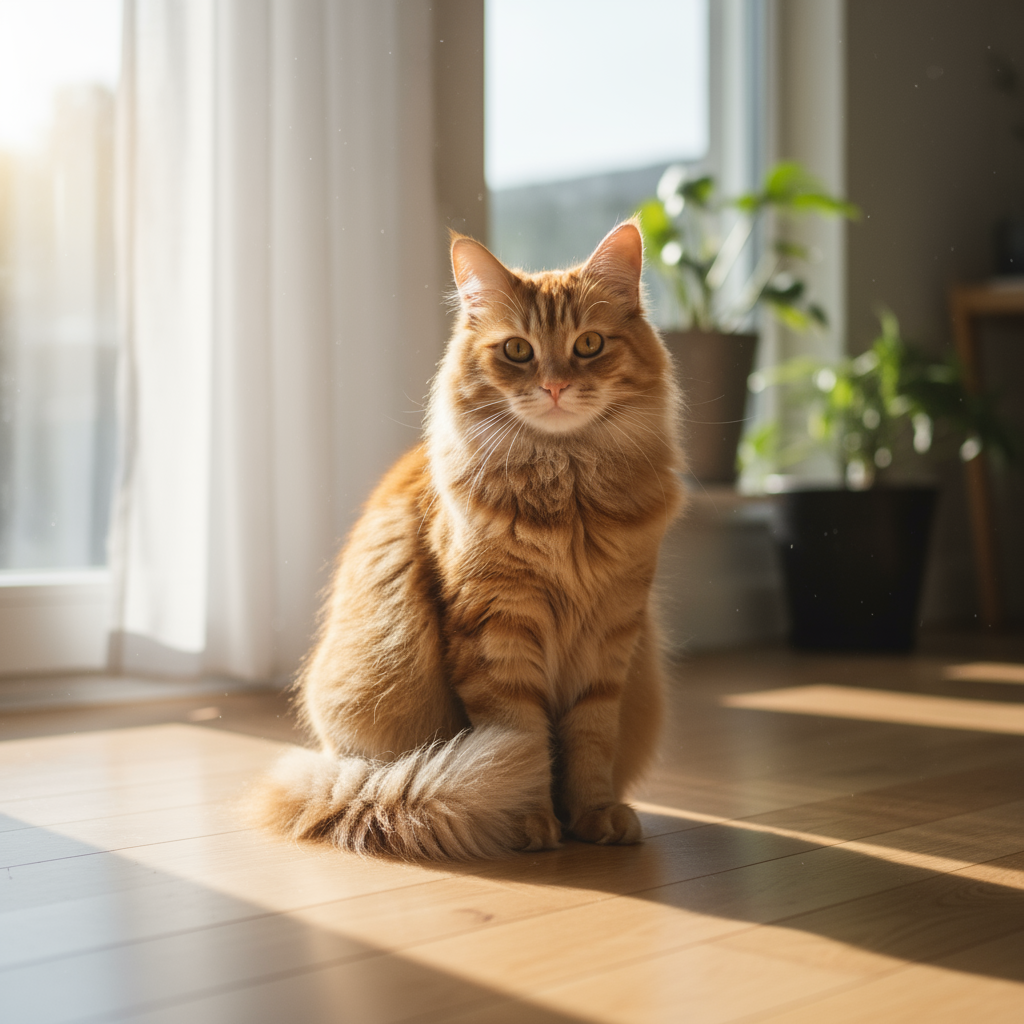
Original Image
Output
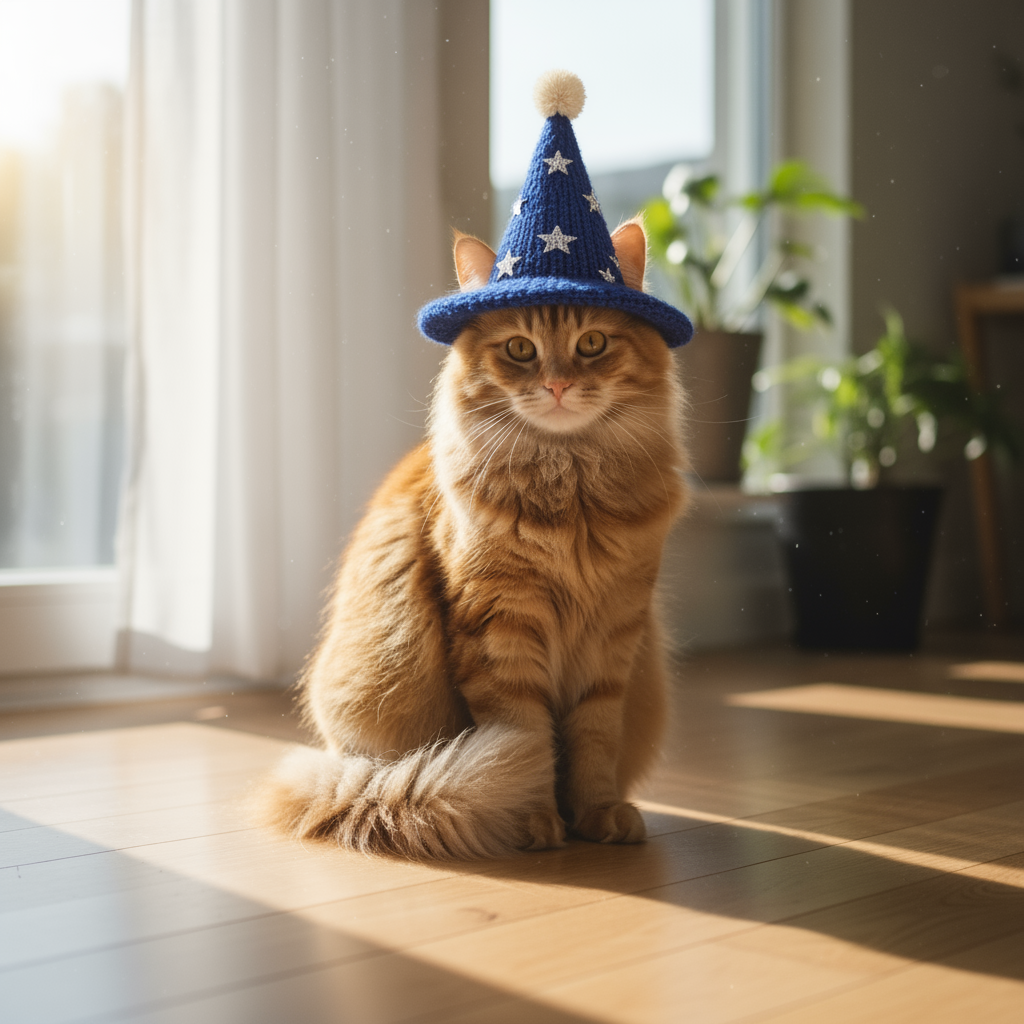
Modified: Added wizard hat
2. Inpainting (Semantic Masking)
Define a 'mask' via conversation to modify specific parts of an image while keeping the rest unchanged. Ideal for precise local modifications.
Inpainting Template
Code Example
from google import genai
from google.genai import types
from PIL import Image

client = genai.Client()

# Base image prompt: "A wide shot of a modern, well-lit living room with a prominent blue sofa in the center. A coffee table is in front of it and a large window is in the background."
living_room_image = Image.open('/path/to/your/living_room.png')
text_input = """Using the provided image of a living room, change only the blue sofa to be a vintage, brown leather chesterfield sofa. Keep the rest of the room, including the pillows on the sofa and the lighting, unchanged."""

# Generate an image from a text prompt
response = client.models.generate_content(
    model="gemini-2.5-flash-image",
    contents=[living_room_image, text_input],
)

for part in response.parts:
    if part.text is not None:
        print(part.text)
    elif part.inline_data is not None:
        image = part.as_image()
        image.save("living_room_edited.png")
Input
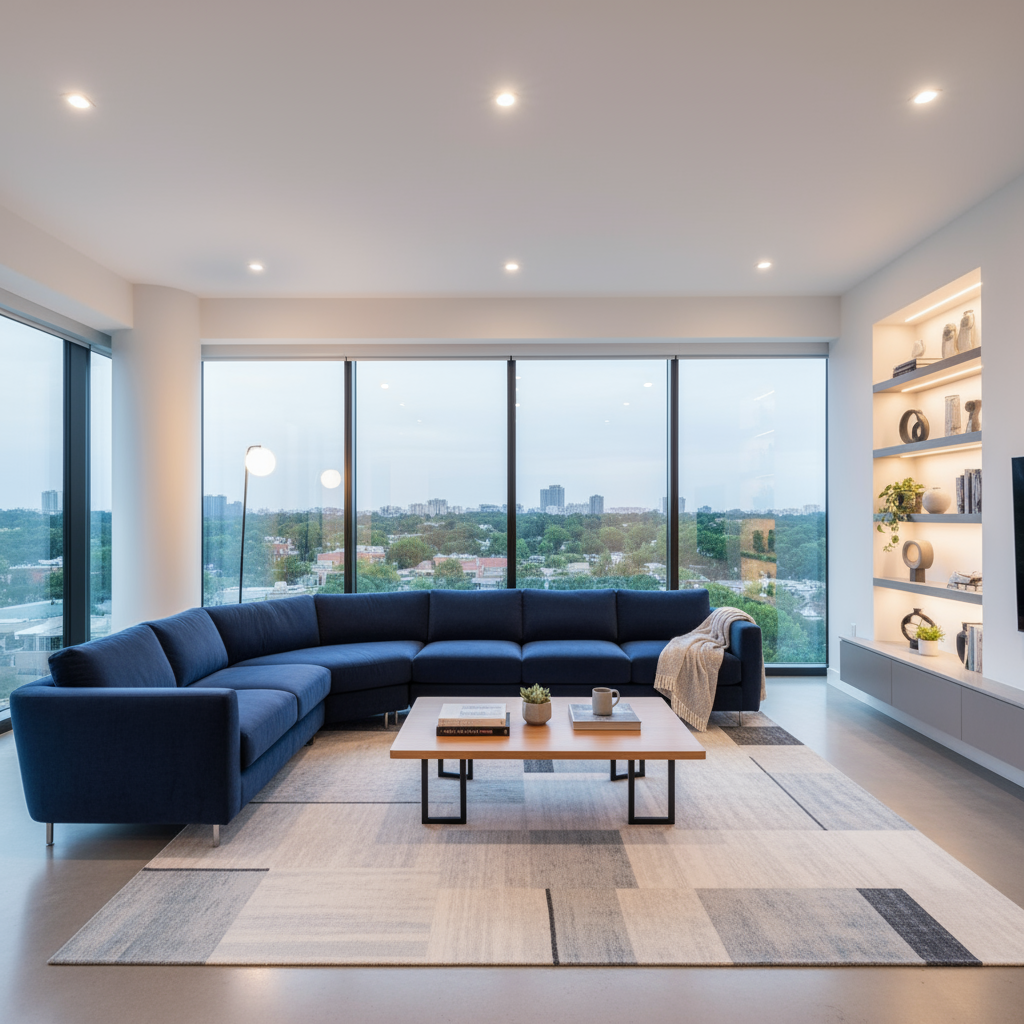
Original Image
Output
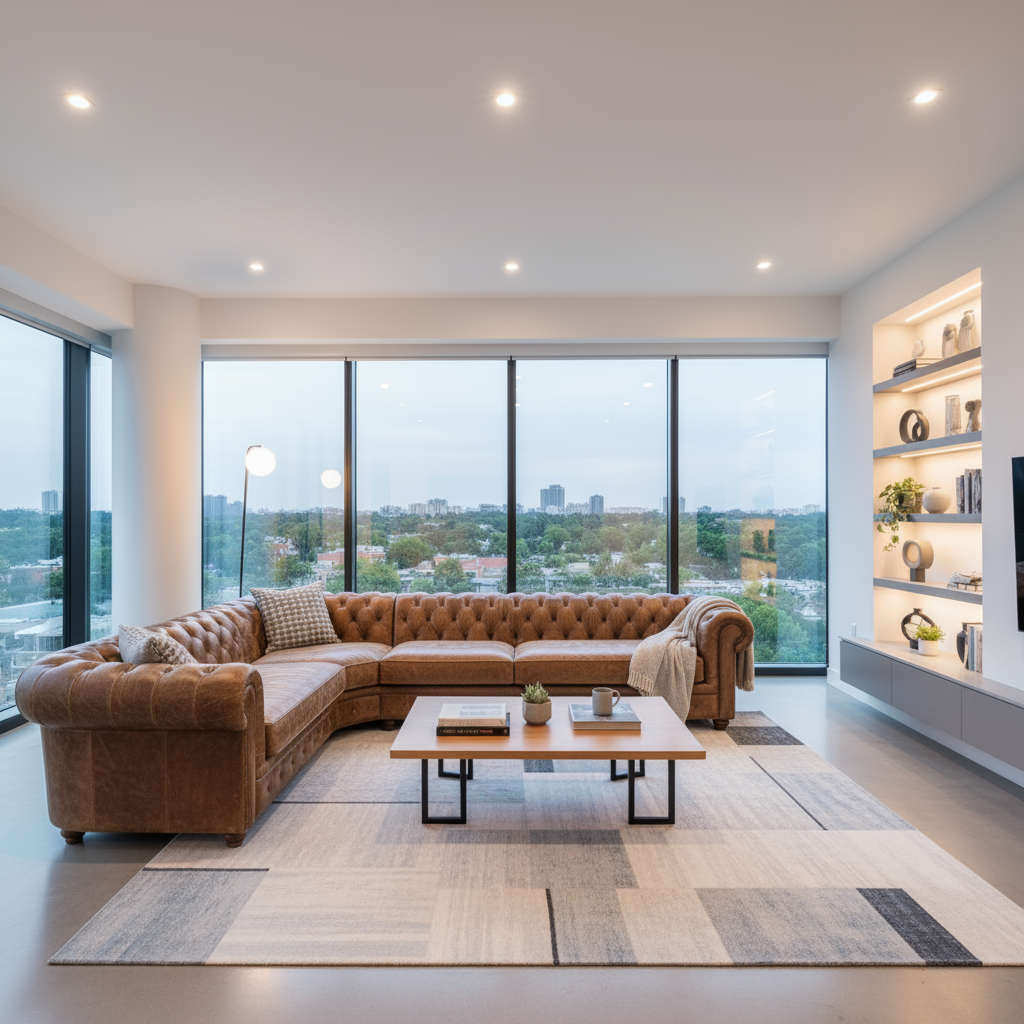
Modified: Inpainted living room
3. Style Transfer
Recreate an image in a different artistic style while preserving the original composition. Perfect for artistic style conversion and creative reinterpretation.
Style Template
Code Example
from google import genai
from google.genai import types
from PIL import Image

client = genai.Client()

# Base image prompt: "A photorealistic, high-resolution photograph of a busy city street in New York at night, with bright neon signs, yellow taxis, and tall skyscrapers."
city_image = Image.open('/path/to/your/city.png')
text_input = """Transform the provided photograph of a modern city street at night into the artistic style of Vincent van Gogh's 'Starry Night'. Preserve the original composition of buildings and cars, but render all elements with swirling, impasto brushstrokes and a dramatic palette of deep blues and bright yellows."""

# Generate an image from a text prompt
response = client.models.generate_content(
    model="gemini-2.5-flash-image",
    contents=[city_image, text_input],
)

for part in response.parts:
    if part.text is not None:
        print(part.text)
    elif part.inline_data is not None:
        image = part.as_image()
        image.save("city_style_transfer.png")
Input
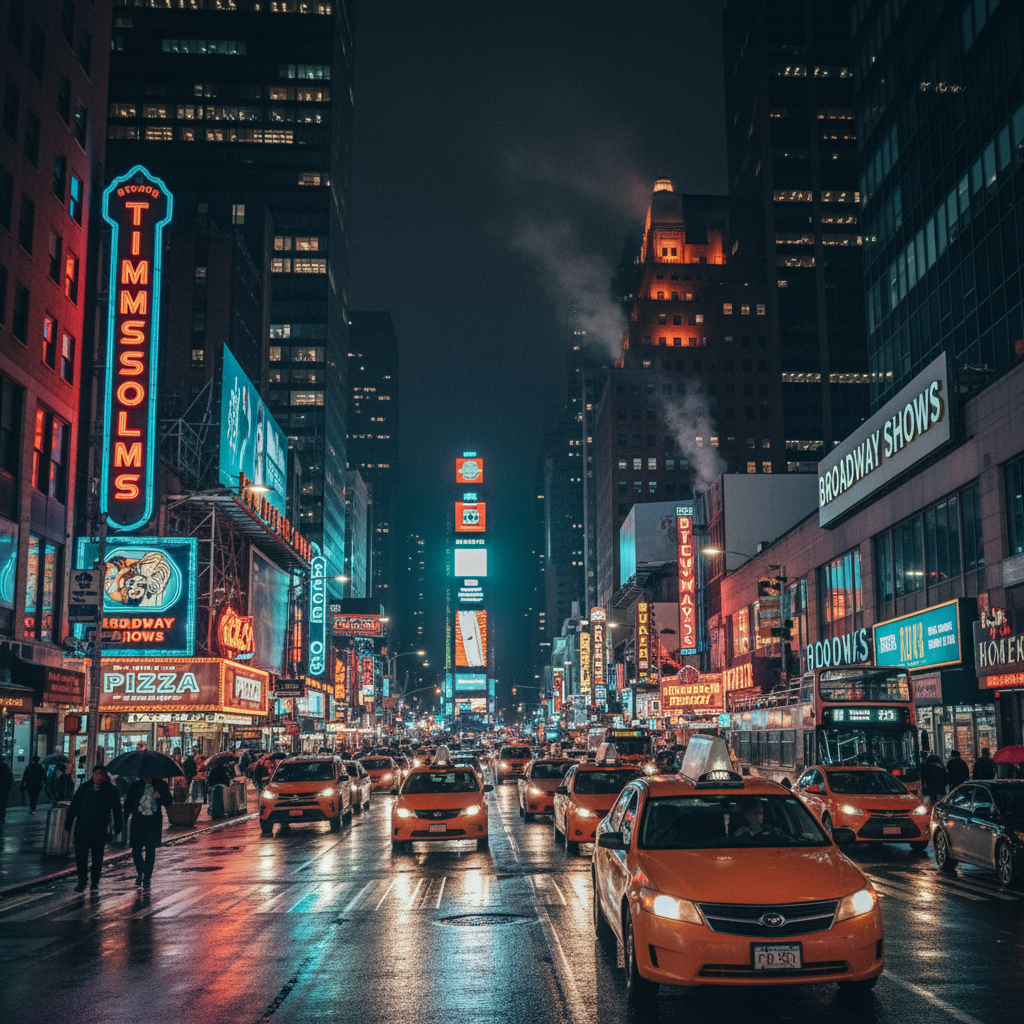
Original Image
Output
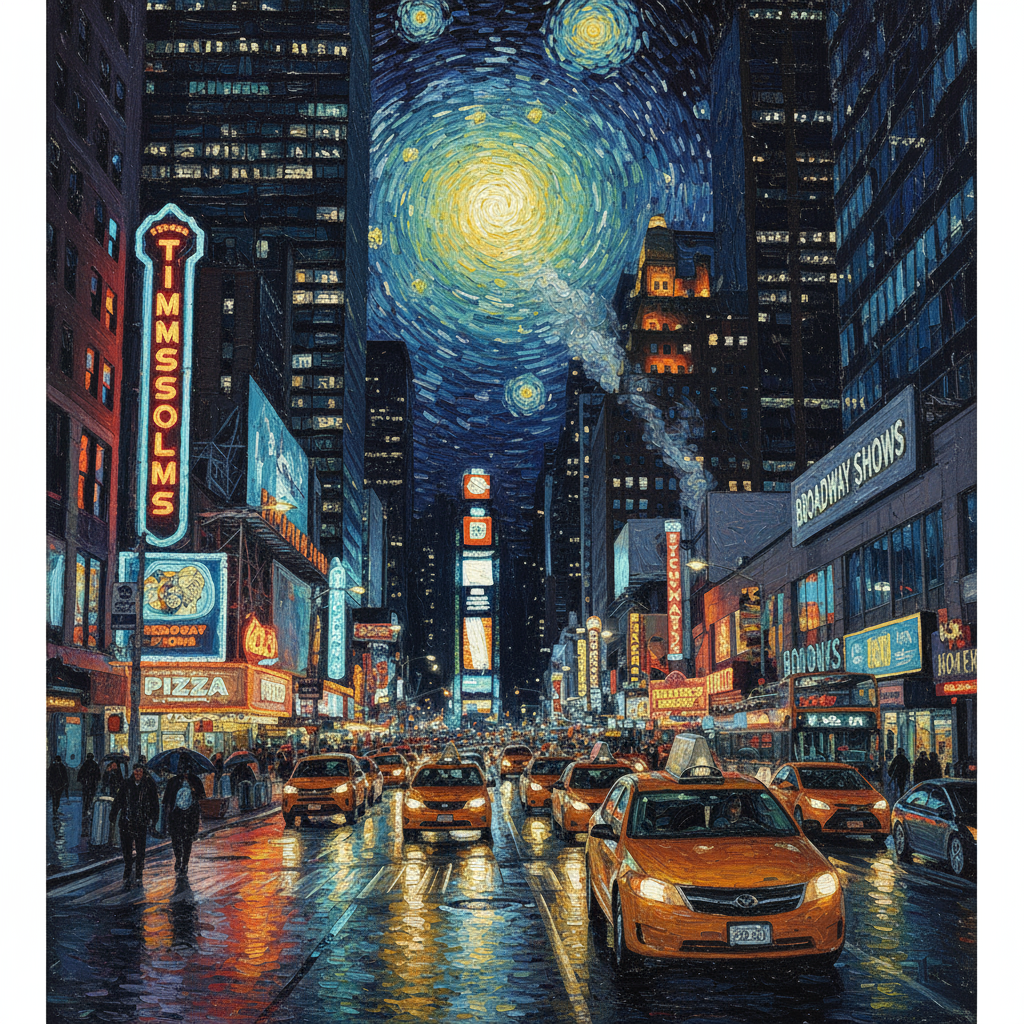
Modified: Van Gogh style
4. Advanced Composition (Multi-Image)
Provide multiple images as context to create new composite scenes. Perfect for product mockups or creative collages. Supports up to 14 reference images.
Composition Template
Code Example
from google import genai
from google.genai import types
from PIL import Image

client = genai.Client()

# Base image prompts:
# 1. Dress: "A professionally shot photo of a blue floral summer dress on a plain white background, ghost mannequin style."
# 2. Model: "Full-body shot of a woman with her hair in a bun, smiling, standing against a neutral grey studio background."
dress_image = Image.open('/path/to/your/dress.png')
model_image = Image.open('/path/to/your/model.png')

text_input = """Create a professional e-commerce fashion photo. Take the blue floral dress from the first image and let the woman from the second image wear it. Generate a realistic, full-body shot of the woman wearing the dress, with the lighting and shadows adjusted to match the outdoor environment."""

# Generate an image from a text prompt
response = client.models.generate_content(
    model="gemini-2.5-flash-image",
    contents=[dress_image, model_image, text_input],
)

for part in response.parts:
    if part.text is not None:
        print(part.text)
    elif part.inline_data is not None:
        image = part.as_image()
        image.save("fashion_ecommerce_shot.png")
Input 1
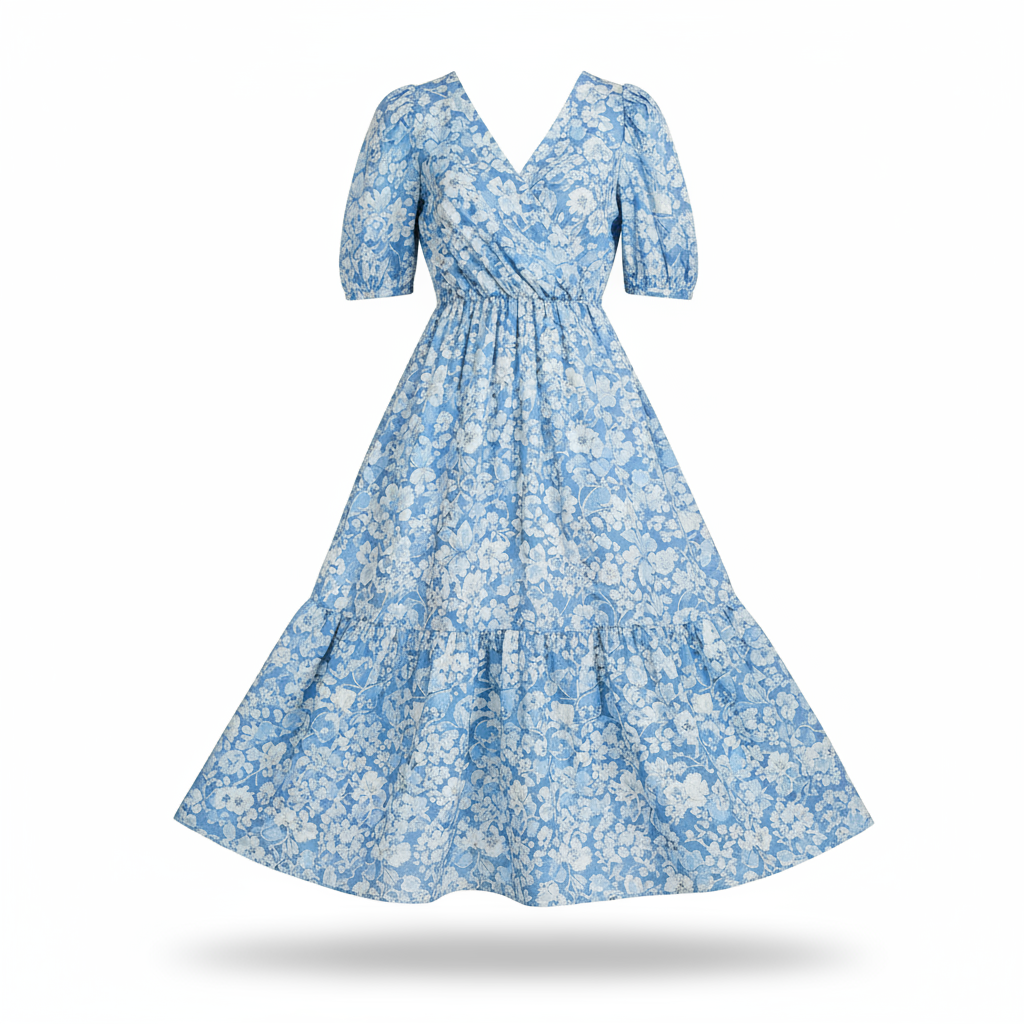
裙子 / Dress
Input 2
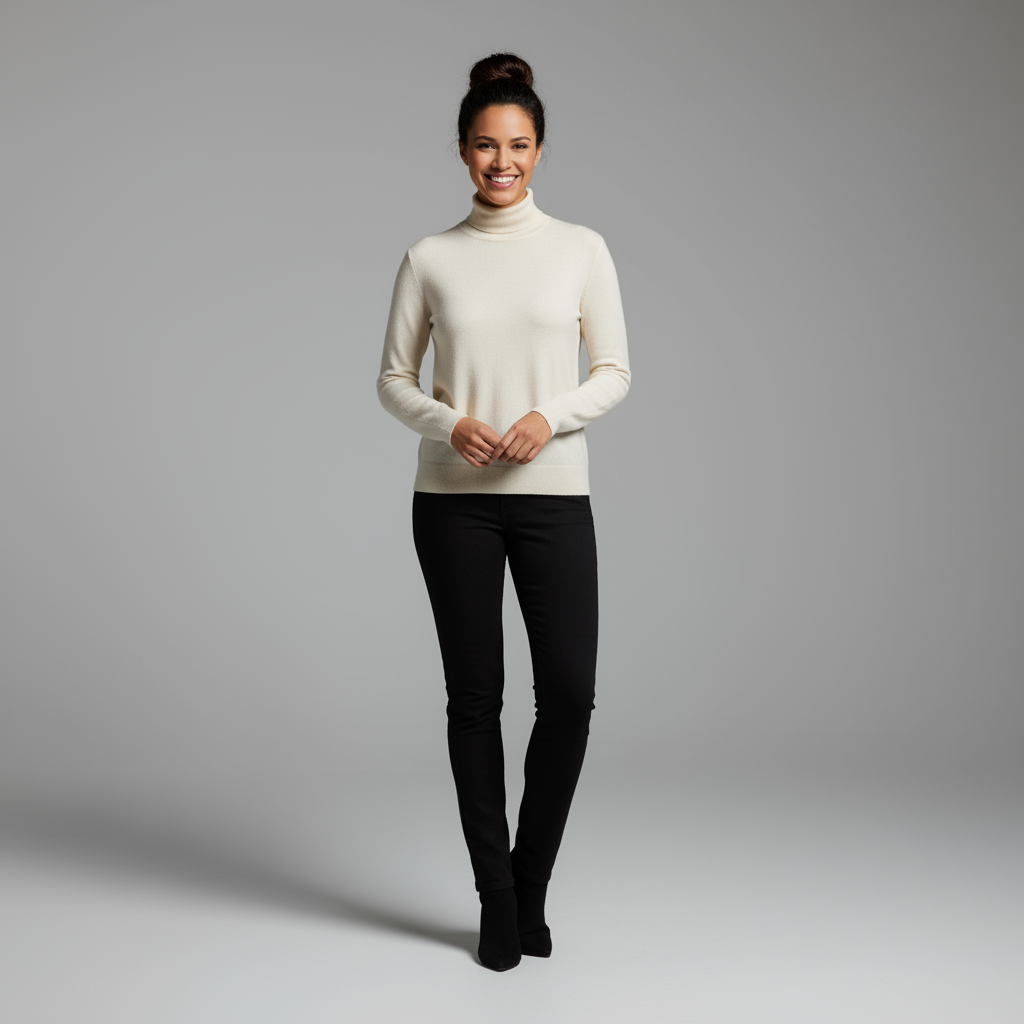
模特 / Model
Output
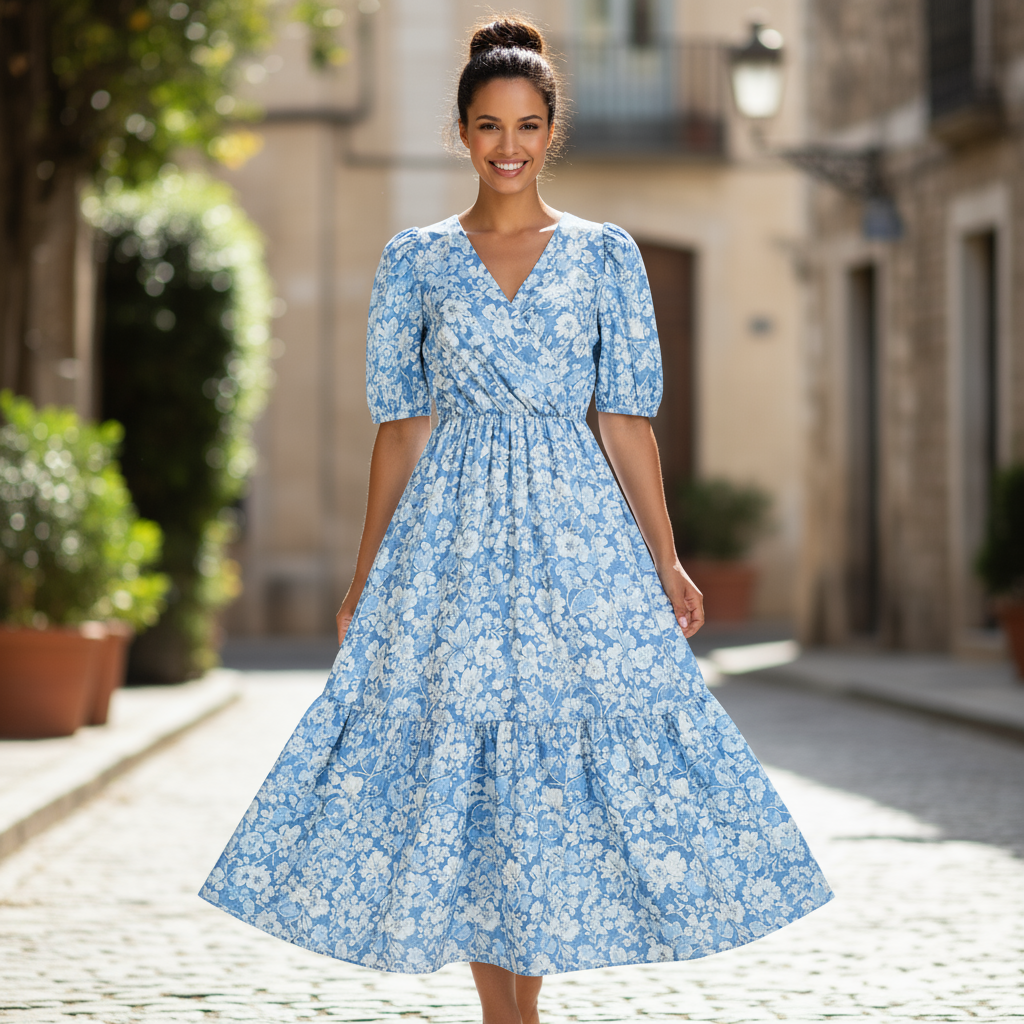
合成效果 / Composite Result
5. High-Fidelity Detail Preservation
To ensure key details (e.g., faces or logos) are preserved during editing, describe these details explicitly in your editing request. Ideal for brand element and character feature preservation.
Fidelity Template
Code Example
from google import genai
from google.genai import types
from PIL import Image

client = genai.Client()

# Base image prompts:
# 1. Woman: "A professional headshot of a woman with brown hair and blue eyes, wearing a plain black t-shirt, against a neutral studio background."
# 2. Logo: "A simple, modern logo with the letters 'G' and 'A' in a white circle."
woman_image = Image.open('/path/to/your/woman.png')
logo_image = Image.open('/path/to/your/logo.png')
text_input = """Take the first image of the woman with brown hair, blue eyes, and a neutral expression. Add the logo from the second image onto her black t-shirt. Ensure the woman's face and features remain completely unchanged. The logo should look like it's naturally printed on the fabric, following the folds of the shirt."""

# Generate an image from a text prompt
response = client.models.generate_content(
    model="gemini-2.5-flash-image",
    contents=[woman_image, logo_image, text_input],
)

for part in response.parts:
    if part.text is not None:
        print(part.text)
    elif part.inline_data is not None:
        image = part.as_image()
        image.save("woman_with_logo.png")
Input 1
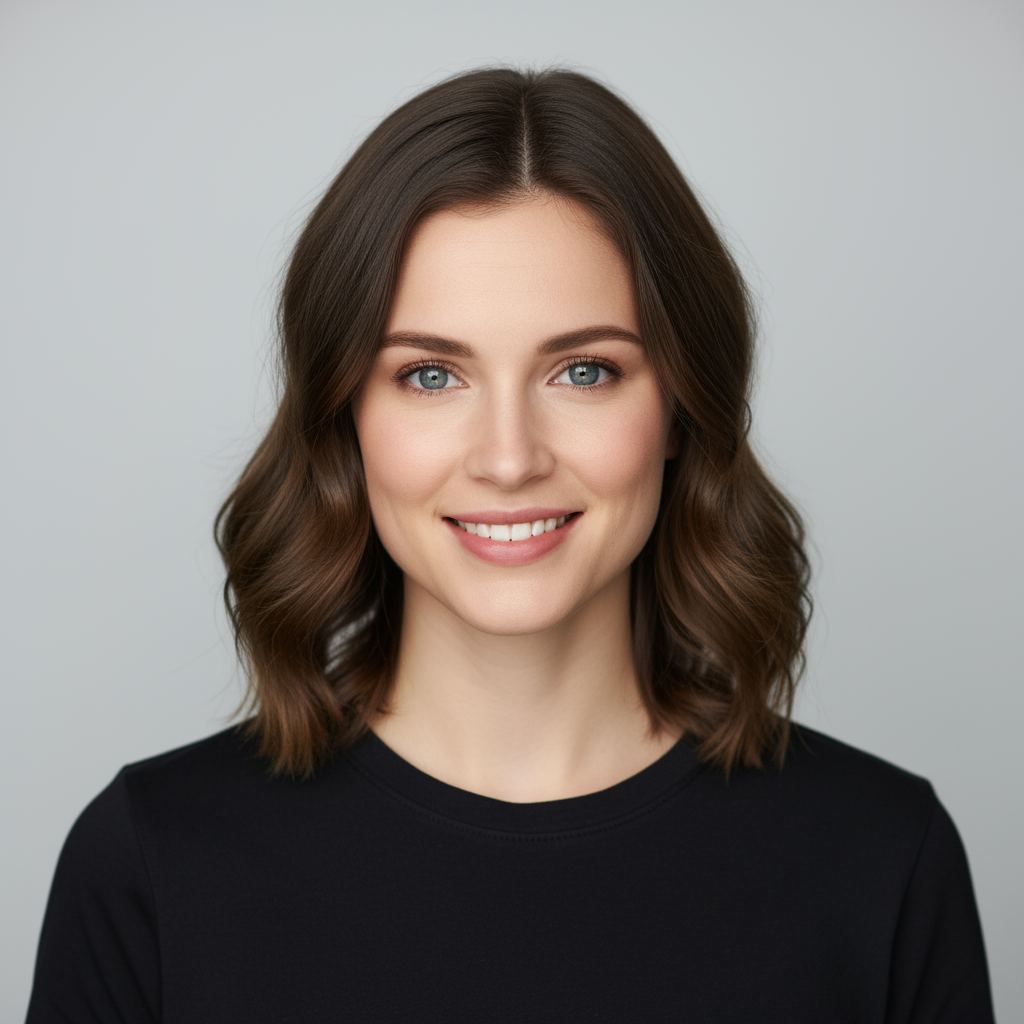
人物 / Woman
Input 2

徽标 / Logo
Output
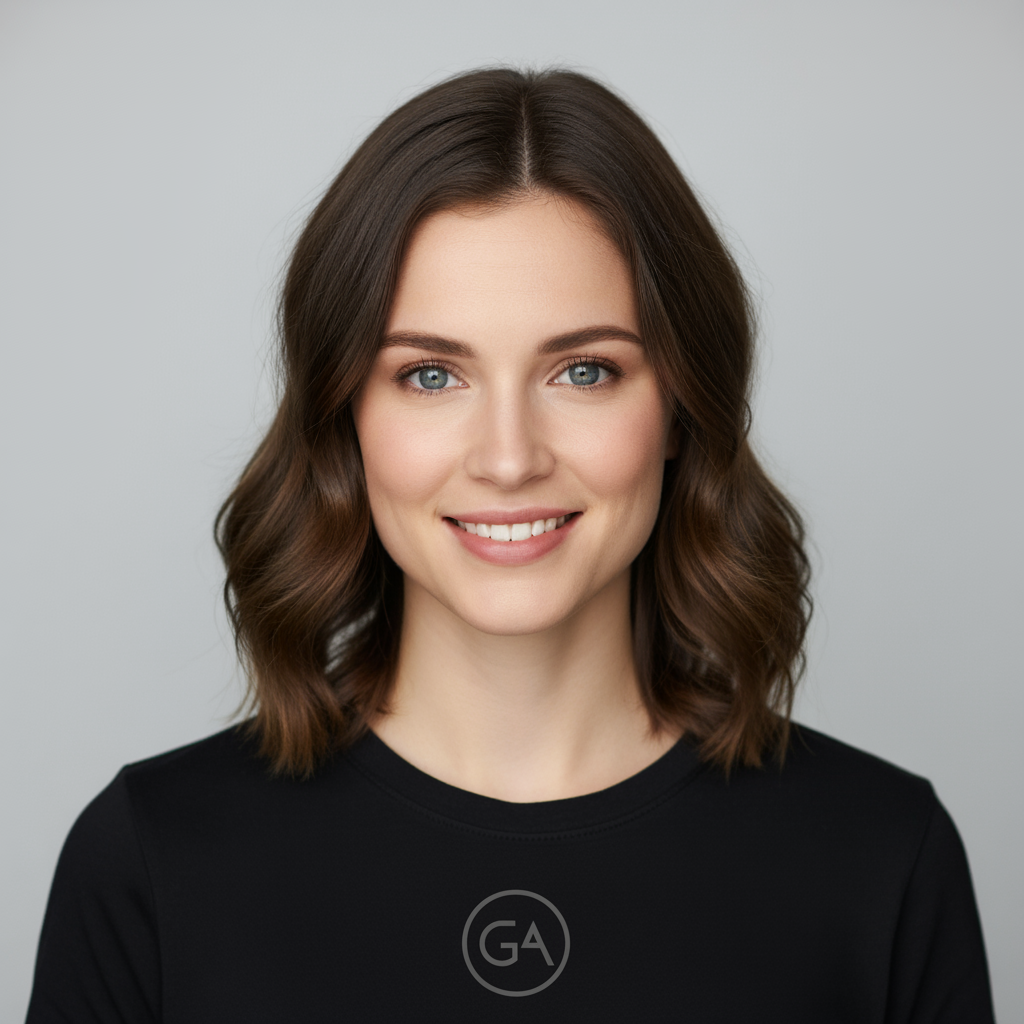
高保真合成 / High Fidelity Result
Best Practices
The more detailed your information, the better control over output. Use specific adjectives rather than vague descriptions.
Explain the purpose of the image. The model's understanding of context influences the final output.
Don't expect perfection on the first try. Use the model's conversational nature to make incremental changes.
Instead of saying 'no cars', positively describe the desired scene by saying 'an empty, desolate street with no signs of traffic'.